First steps
After installation the SignDeck Display starts on the monitor by itself. The admin interface is reachable over the network on port 8080 from any browser – you do not need to plug a keyboard into the display.
- Open the display's address in a browser and log in.
- Give the display a name (Settings → General) – this appears in the header and on the controller.
- Put together the first playlist and make it active.
For a single display that is all: no controller is needed.
Building content
Create a list in the Playlists menu and add items in its editor. Every item has a duration and a position; you can reorder items by drag and drop.
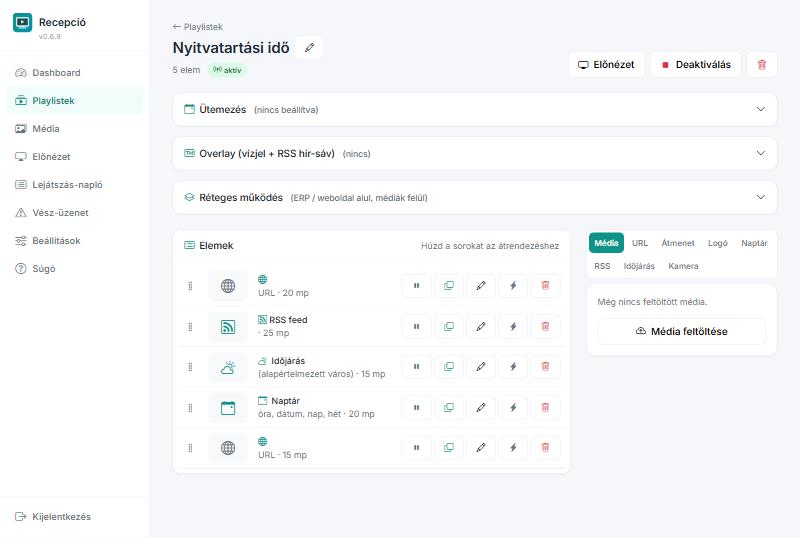
Item types. Images and video from the media library; web pages (YouTube and Vimeo links become playable embeds automatically); news feeds as a ticker or a full page; weather; ICS calendars; live camera streams.
Scheduling. You can set when a playlist applies – so, for example, something different runs during opening hours than in the evening.
Monitors and video wall
A display can drive several monitors. On Settings → Monitors you set which is where, on a diagram, and choose a display mode.

- Automatic – mirrors identical monitors, gives separate content to differing ones.
- Mirror – the same on every monitor.
- Independent – a separate playlist per monitor.
- Extended (video wall) – the monitors form one large screen and the image stretches across them.
Not sure which monitor is which? The Identify button writes each one's own number on it.
On a video wall we do not compensate for the strip hidden behind the monitor bezels: the image is continuous. The correct compensation differs per monitor model, and set wrongly it is more distracting than leaving it out.
Relays – when a picture is not enough
With a USB relay board the display switches physical outputs: a gate, a siren, shop-window lighting. Name the outputs on Settings → Relays, and test them there too.
- Tied to a playlist item – when the item comes up.
- On an emergency message – the output stays on while the message is live.
- By time of day – for example shop-window lighting between 17:00 and 22:00.
A relay tied to an emergency message switches independently of the browser – so it sounds even when something is wrong with the screen.
Cameras
An IP camera stream can go into the playlist too. On Settings → Cameras, Scan finds ONVIF cameras on the network; others can be added by hand.
- Scan, or add manually (address, port).
- Username and password – most cameras give no stream without them.
- Re-check: the display queries the camera's stream profiles.
- A snapshot next to the entry shows whether a picture really arrives.
A camera allows only a few simultaneous connections. If you get a “not enough bandwidth” error, another program is probably still holding one – the display drops unused connections by itself after half a minute.
Many displays together
With several displays, the SignDeck Controller shows and manages all of them: content assignment, status, alerts, settings sets.

Fleet profiles. Monitor mode, maintenance window, watchdog, time zone, relay names – set once, rolled out to many displays. A profile is not a straitjacket: a display applies it only when the profile has changed, so local changes are preserved.
Remote diagnostics
If a display misbehaves, you do not have to go there. A fresh screenshot and a log excerpt can be requested from the display's page.

The log excerpt contains the display's audit log and as much of the system log as the display can read with its own permissions. Values that look like secrets are redacted before sending.
Only one action can be queued at a time: ordering a new one drops the previous one – the interface tells you.
When it shows the wrong thing
Work through this in order, most common causes first:
- Preview menu: if the picture is fine here, the content is fine and the problem is the monitor or the browser.
- Dashboard: is there an active playlist, and is the player alive?
- Is there an emergency message overriding the content? The indicator pulses in the top bar.
- Does the playlist have a schedule that makes it inactive right now?
- Settings → Monitors: is the right monitor enabled?
If the screen is black but the admin interface is reachable, the problem is in the player, not the content – the display session can be restarted on Settings → System without rebooting the machine.

Did not find it?
Write to us and we will help.